
Why OmniResponse?
Smart Knowledge Base
Your documents become instant answers
Upload PDFs, Word and ODT files, Excel spreadsheets, text files and saved emails. Scanned PDFs are read by AI — including tables and descriptions of charts. Omni searches three ways at once — by meaning, by keywords and by exact phrases (like contract numbers) — then a second AI model picks the most relevant passages.
10 file formats · AI-powered OCR · Cloud storage auto-sync · Antivirus scanning
Intelligent Email Monitoring
Drafts waiting in your inbox before you even open it
Connect Gmail, Outlook, or any IMAP account. OmniResponse monitors selected folders in real time. It recognises spam, notifications and urgent messages — drafts are created only where someone expects a reply. Drafts land in your mailbox’s Drafts folder with proper threading — as if you wrote them yourself.
Real-time IMAP monitoring · Spam filtering · Thread-aware replies · Multi-language detection
Enterprise-Grade Security
Access control and encryption of sensitive data
Mailbox and cloud credentials, as well as message and draft content, are encrypted with AES-256-GCM using a separate key for each company. Company data is separated at the database level (row-level security), and each company’s knowledge is stored in its own separate collection. Two-factor authentication is mandatory, and an audit log records sign-ins and administrator access. We don’t train AI models on your data, and our AI providers are contractually committed not to use it to train their models.
AES-256-GCM encryption · MFA with 12 recovery codes · Audit log
Analytics & Team Management
Track time saved and prove ROI
See the estimated time your team saved and the most-used knowledge passages and documents (Professional and above). Manage multiple projects, assign packages, and control access with role-based permissions.
Estimated time saved · Most-used passages · Multi-project management · CSV and PDF export
Powerful Features. Simple Workflow.
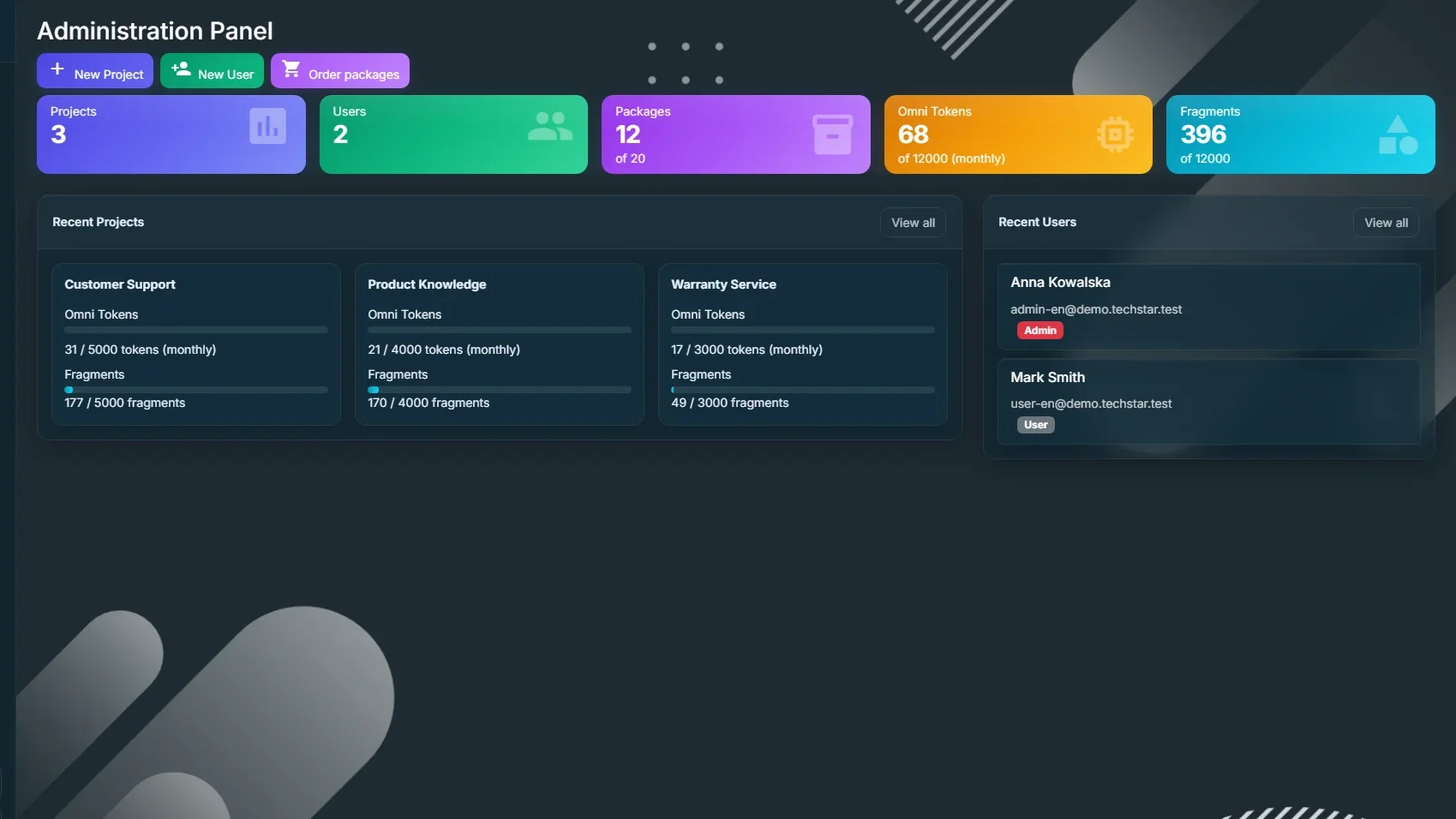
What is a Project?
A Project is your dedicated workspace in OmniResponse — a container that brings together everything you need to handle a specific area of your business.
Learn more
When you create a Project, you’re setting up a separate workspace with its own knowledge base, email connections, and team members. Think of it as a separate “brain” for each topic or department — Product Support, Sales, HR, or any client-specific workflow.
Each Project includes:
- Dedicated knowledge base — Upload documents relevant only to this context. When Omni generates a response, it searches only this Project’s knowledge — no cross-contamination from unrelated content.
- Connected email accounts — Link one or more mailboxes and choose which folders to monitor. Omni watches for incoming messages and prepares draft replies automatically.
- Team access control — Invite specific users and assign roles (Admin or User). Team members see only the Projects they’re assigned to.
- Response style settings — Set the default tone (Formal, Standard, or Casual) and provide sample emails so Omni matches your voice.
- Usage tracking — Each Project has its own token and fragment limits, so you can allocate resources exactly where needed.
What you can do:
- Create Projects for different clients, departments, or use cases
- Keep knowledge bases separate so responses stay accurate and relevant
- Monitor multiple mailboxes per Project
- Track analytics and time saved per Project
- Scale by adding more token/fragment packages as your needs grow
Your Documents, Instantly Searchable
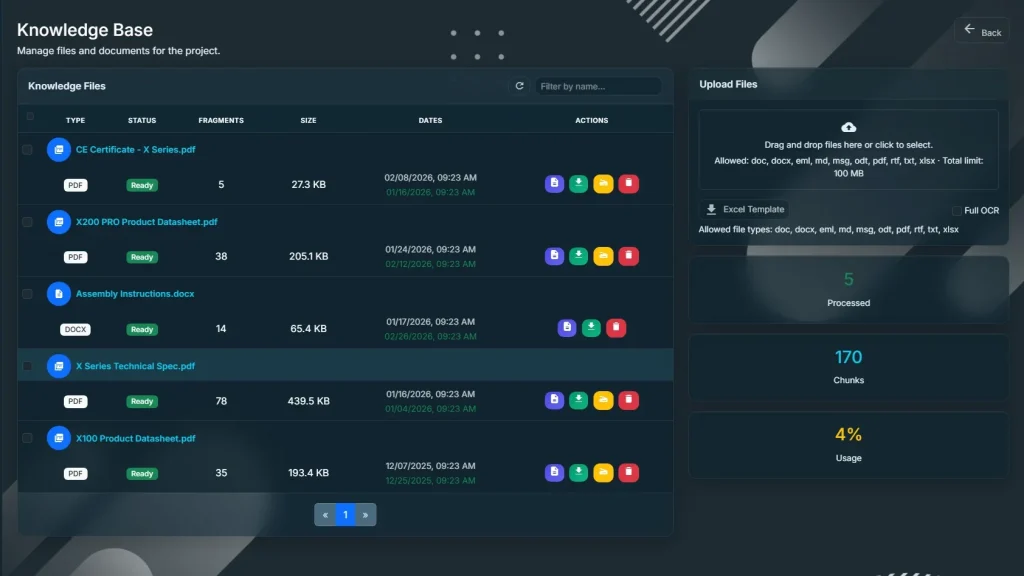
The Knowledge Base is where OmniResponse learns about your business. Upload your documents once, and Omni uses them to generate accurate, context-aware responses — no more digging through folders to find the right answer.
Learn more
How to add documents:
- Manual upload — Drag and drop files directly into your Project’s Knowledge Base. Upload multiple files at once (up to 100 MB total per batch).
- Cloud storage sync — Connect OneDrive, Google Drive, Dropbox, or SharePoint. Select folders to monitor — OmniResponse automatically syncs new and updated files every 30 minutes.
What Omni does when you upload a file:
- Extracts text — Parses the document content (including OCR for scanned pages)
- Splits into fragments — Breaks the content into searchable chunks by content (200–500 words each)
- Indexes for retrieval — Stores fragments so Omni can find the most relevant ones when answering questions
Connect your cloud drives and let OmniResponse keep your knowledge base in sync automatically:
- Supported providers: OneDrive, Google Drive, Dropbox, SharePoint
- Selective sync: Choose specific folders — only those files are indexed
- Auto-update: New files appear in your knowledge base within 30 minutes
- Change detection: Updated files are re-processed automatically
- Deletion sync: Removed files are cleared from the knowledge base
Each company’s knowledge is stored in its own separate collection, and every project searches only its own documents.
Supported file formats:
| Format | Description |
| Manuals, guides, contracts, reports | |
| DOCX / DOC | Word documents, SOPs, policies |
| XLSX | Spreadsheets, price lists, data tables |
| ODT | OpenDocument files (e.g. from LibreOffice) |
| TXT / MD / RTF | Plain text, Markdown, rich text |
| HTML | Web pages, exported articles |
| EML / MSG | Saved emails (for reference templates) |
| Scanned PDFs | Read by AI, including tables and descriptions of charts |
_
Omni Watches Your Inbox So You Don’t Have To
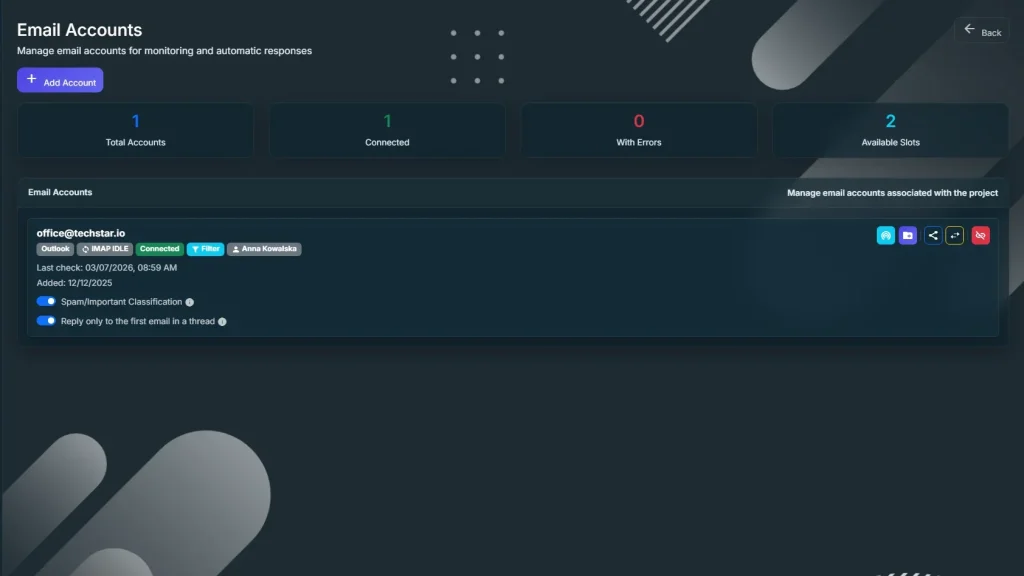
Connect your email accounts and let OmniResponse monitor incoming messages. When a new email arrives, Omni reads it, searches your knowledge base, and prepares a draft reply — ready for you to review and send.
Learn more
Supported email providers:
- Gmail — OAuth connection (secure, no password stored)
- Microsoft Outlook / Office 365 — OAuth connection
- Any IMAP server — Standard protocol for custom email hosts
How to set it up:
- Go to your Project settings and click Add Email Account
- Choose your provider (Gmail, Outlook, or IMAP)
- Authorize access — OmniResponse requests read/write permissions
- Select folders to monitor (e.g., Inbox, Support, Sales)
What happens when an email arrives:
- Detection — Omni detects the new message instantly
- Classification — The email is analyzed: Is it spam? Is it important? Does it need a response?
- Context retrieval — Omni searches your Project’s knowledge base for relevant information
- Draft generation — A response is written using the retrieved context and your preferred tone
- Ready for review — The draft appears in your mailbox. Edit if needed, then send
You stay in control:
No email is ever sent automatically. Every draft waits for your review. You can edit, regenerate with different settings, or discard — the final decision is always yours.
Every Response, Fully Traceable
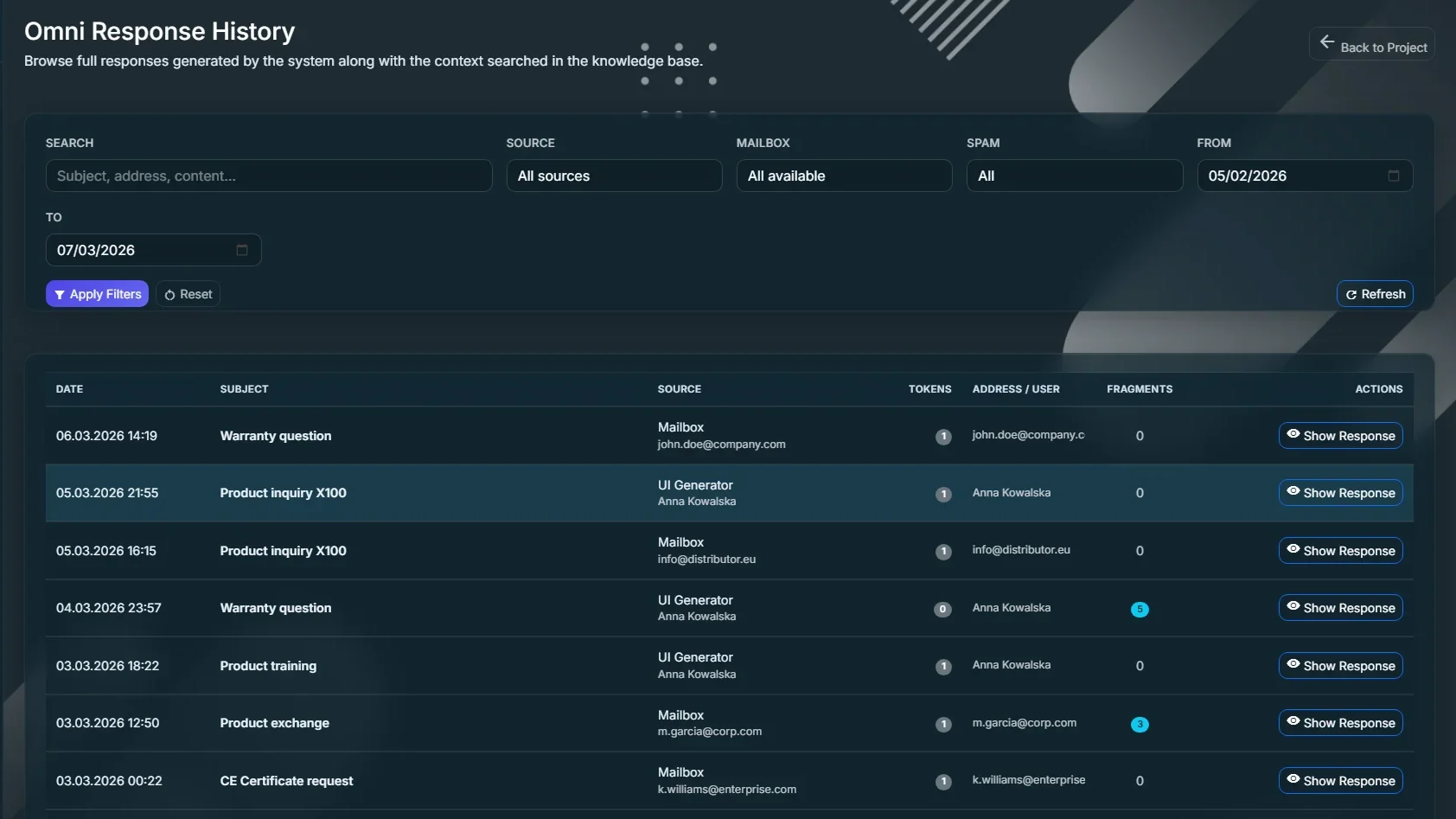
Generation History is your complete log of everything Omni has done. Every draft, every source, every decision — searchable and exportable.
Learn more
Detailed view for each entry:
- Original message — The email or query that triggered the response
- Generated draft — The complete response Omni prepared
- Knowledge sources — Which fragments were used, from which files, with relevance scores
- Timing data — How long each processing stage took
Filters and search:
- Filter by date range (quick buttons: 7 days, 14 days, 30 days, this month)
- Filter by source type (UI, Mailbox, API)
- Filter by classification (Spam, Normal, Important)
- Search by sender, subject, or content
Export options:
- CSV export — Download the full history for reporting or analysis (Professional and above)
Why it matters:
- Performance tracking — Monitor response times and token usage
- Audit trail — See exactly what Omni prepared and when
- Quality review — Check if responses are accurate and on-brand
- Knowledge gaps — Identify topics where your knowledge base needs more content
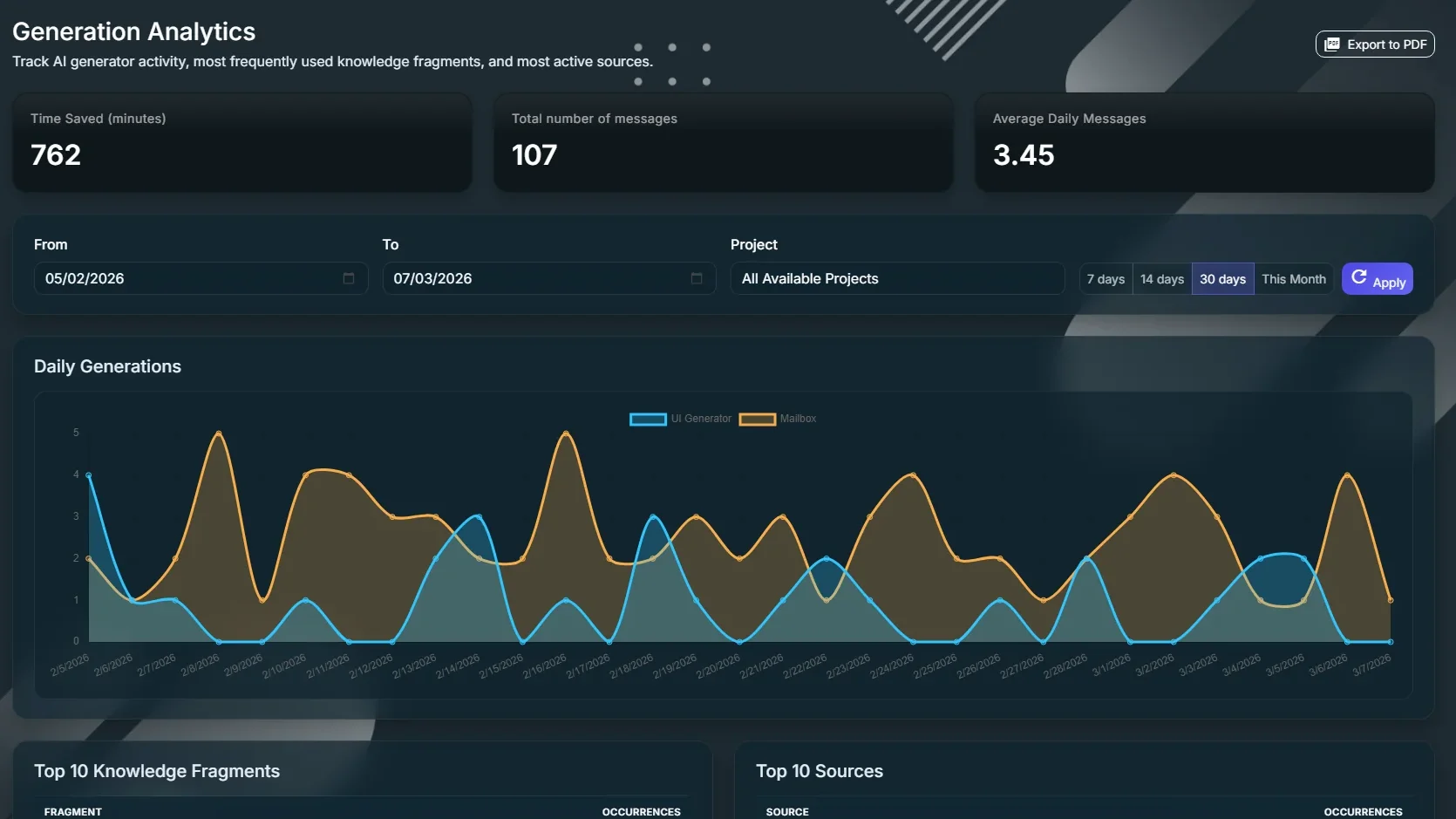
See the Impact. Prove the Value.
OmniResponse gives you real-time visibility into how your team is using the system — and the time you’re saving.
Learn more
Charts and insights:
- Daily generations chart — See response volume over time
- Top 10 knowledge fragments — Which pieces of your knowledge base are used most often
- Top sources — Which email address is used most frequently
Filters:
- Export to PDF for reporting
- Date range selector with quick presets
- Project filter (for users with access to multiple Projects)
Everything Your IT and Compliance Team Will Ask About
We built OmniResponse with enterprise security in mind. Your data stays protected, your auditors stay happy, and your IT team gets the controls they need.

Learn more
Infrastructure & data protection:
We process data in line with GDPR: data export and deletion on request.
|
Aspect |
Details |
|---|---|
|
Data separation |
Company data is separated at the database level (row-level security) |
|
GDPR |
Data export and deletion on request |
|
Sign-in |
Mandatory two-factor authentication (authenticator app) with 12 recovery codes |
|
Encryption |
Mailbox and cloud credentials, message and draft content: AES-256-GCM with a separate key for each company |
|
Encryption in transit |
TLS for all connections |
Data Protection
- No AI training on your data — we don’t train AI models on your data, and our AI providers are contractually committed not to use it to train their models
- Separated knowledge — each company’s knowledge is stored in its own separate collection, and every project searches only its own documents
- Soft delete with retention — Deleted data is recoverable within a defined period, then permanently purged
- Audit log — records sign-ins, administrator access, encryption-key operations and access to message history
What We Don’t Do
- We don’t sell your data
- We share data only with the providers needed to run the service
- We don’t train AI models on your documents
- We don’t store Gmail or Outlook passwords (OAuth sign-in); IMAP passwords are stored only encrypted